.png?width=2200&height=300&name=We%E2%80%99re%20moving%20to%20a%20new%20home!%20We%E2%80%99re%20working%20on%20something%20that%E2%80%99ll%20make%20finding%20help%20a%20whole%20lot%20easier%20one%20home%20for%20all%20our%20Customer%20Enablement%20resources.%20It%E2%80%99s%20called%20LaunchPad.%20There%E2%80%99s%20nothing%20to%20do%20(5).png)
Role & Group Management allows admins to easily create and manage groups directly from the Settings page in the portal. Admins can also update user group memberships at any time, giving you full control over how users are organized and assigned within the system.
Groups
A collection of Roles that together define the abilities and location permissions assigned to a user.
Adding a Group
- Click Settings > Groups from the bottom left of the platform.
- Click New Group and name it when prompted. For this example, our group name is WorkStep Admins.
Roles
A collection of permissions that determine what a user can do and where they can do it.
Adding Roles
- Click on the name of the new group you created
- Using the search bar on the Roles box, type and click on the roles you wish to add. In this case, we've added Retain Admin, PIT Creator, Inform Author, and All Access.
- Using the search bar on the Members box, type click on the members (users) you wish to add.
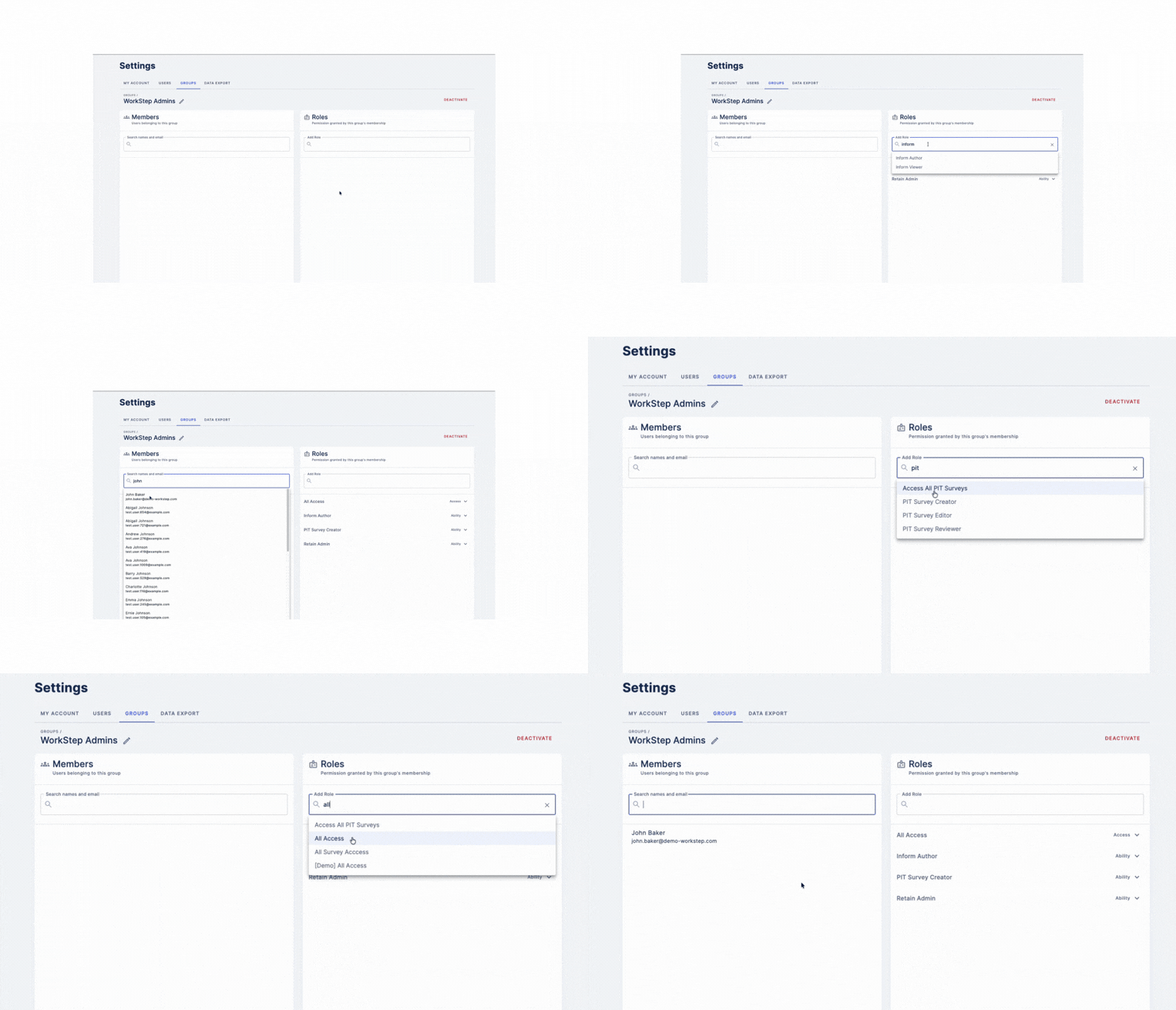
Clicking the dropdown arrow associated with a role will define the role.
For customers using Directory Sync, Admins will not be able to invite new team members and/or copy permissions from the portal. Admins also cannot modify membership of directory sync groups, as that is governed by the Directory System provider.